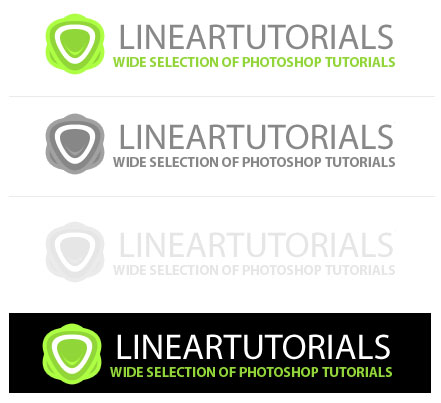
In this tutorial i am going to show you how you can create one logo with web 2.0 style.
Note: This tutorial was published before on another small site some years ago. I decided to close that site but i always liked this tutorial and he got a lot of positive reviews. So i decided to update it and publish it here at Photoshop Star.
Final Image Preview

Step 1
Create a new document with size of 600 x 300 pixels and fill it with white color.

Step 2
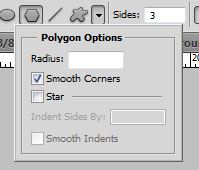
Create a new layer. Select the Polygon Tool, set sides to 3 and on Polygon Options select Smooth Corners.
Set foreground color to #91D638 and draw a polygon facing up.

Step 4
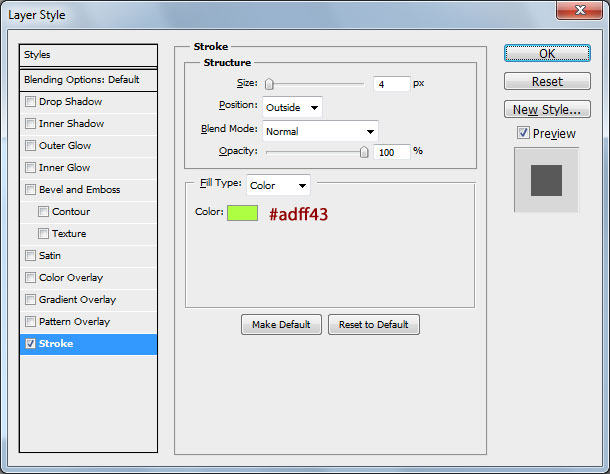
With layer selected, go to Layer > Layer Style > Blending Options > Stroke.

Step 5
Create a new layer. Add a white polygon on the center, slightly smaller than the green polygon.
Step 6
Create a new layer. Draw another green polygon, slightly smaller than the white polygon.

Step 7
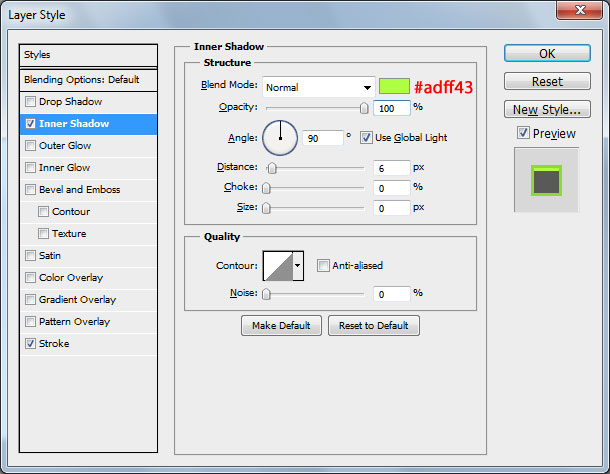
With this layer selected, go to Layer > Layer Style > Blending Options and add the following styles:
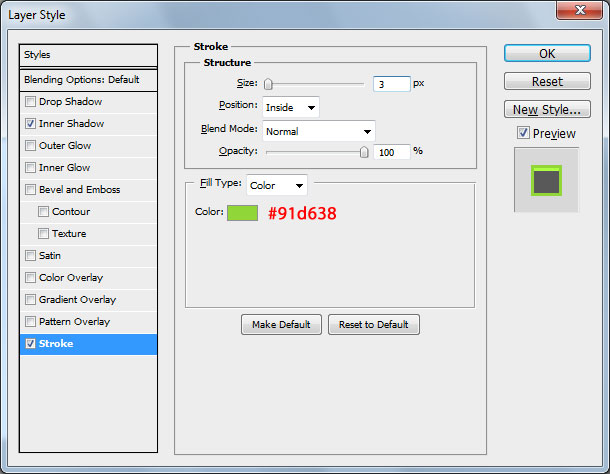

Step 8
Merge all visible layers into one except background layer. Duplicate layer and rotate upside down and you will have something similar to what i have.

Final Image
Now add some text using font Myriad Pro, Semibold, Smooth, 47px and color #888888.
You can see now logo with different colors: